
Connect your calendar and external services to enable agent integrations, meeting insights, and API access.
Connections overview
The Connections page includes three main tabs:
Use this page to manage integrations, calendar settings, and developer access.
Meeting agents and calendar
Connect your calendar, view meetings, and configure meeting agents
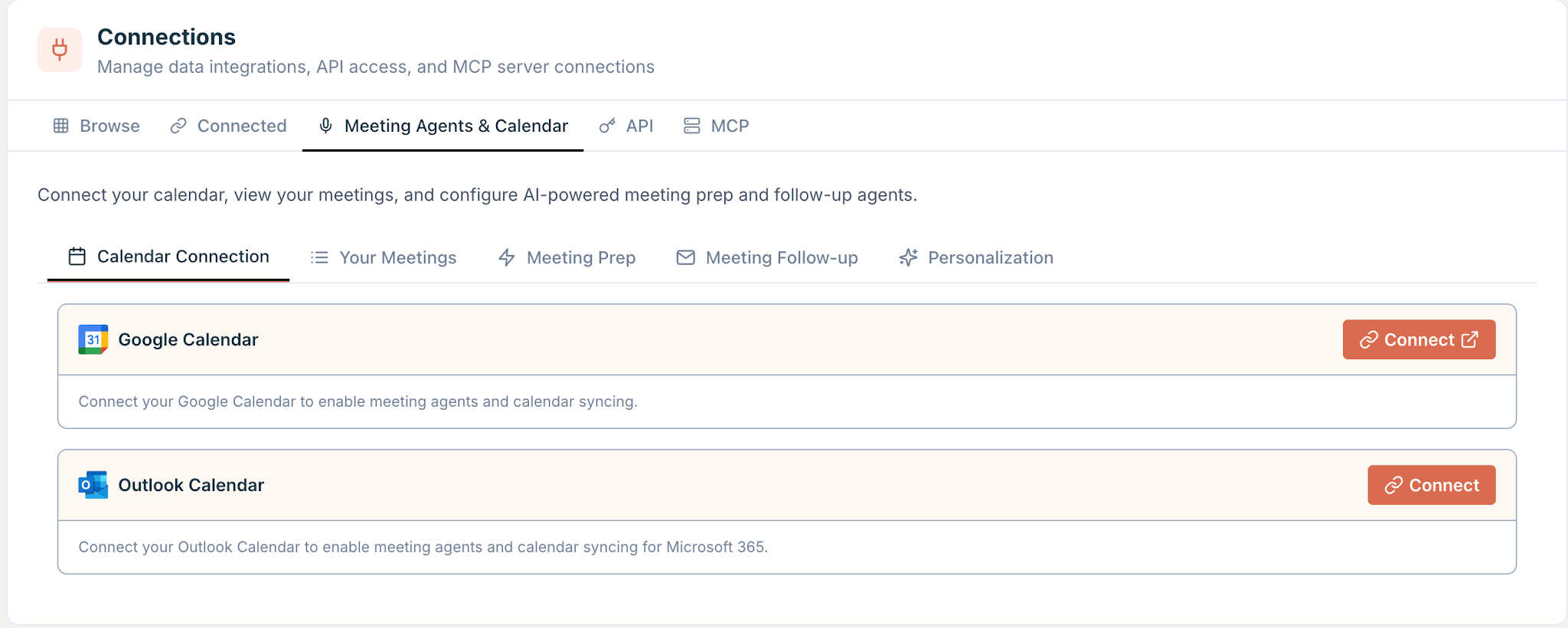
Calendar connection
Connect your calendar to enable meeting agents and syncing.
Supported providers:
- Google Calendar
- Outlook Calendar (Microsoft 365)
To connect your calendar:
- Go to Connections
- Open Meeting agents & calendar
- Click Calendar connection
- Select a provider ( Google Calendar / Outlook Calendar )
- Complete the authorization flow
Once connected, agents can access your upcoming meetings.
Your meetings
View meetings from your connected calendar.
If no calendar is connected, you’ll be prompted to connect one.
Meeting prep
Receive meeting briefs before your meetings.
Configure meeting prep:
- Go to Meeting prep
- Choose a delivery schedule:
- 1 hour before
- Before each meeting
- Daily digest (coming soon)
- Select meeting filters (e.g., all meetings)
Meeting follow-up
Receive summaries and action items after meetings.
Notetaker settings
Control how meetings are recorded and processed.
- Enable recording to generate insights
- Auto-join every meeting to record and transcribe
- Set a custom notetaker name (displayed in meetings)
To configure follow-ups:
- Go to Meeting follow-up
- Enable recording if needed
- Choose a delivery schedule:
- After each meeting
- Daily digest (coming soon)
- Select meeting filters
Personalization
Define your business context for meeting agents.
Business profile
Provide details such as:
- Product description
- Ideal customer profile
- Pain points
- Differentiators
- Value propositions
- Competitors
- Proof points
- Sales process
This information helps agents tailor:
- Meeting prep briefs
- Follow-up summaries
- Recommendations
API
Use your API key to integrate Agent.ai programmatically.
In this tab:
- View your API key
- Send prompts to language models
- Generate images
- Run agents
Important
Keep your API key secure. It provides access to your account and usage.
MCP
Connect Agent.ai to external AI clients using the Model Context Protocol.
Use MCP to:
- Connect with tools like Claude Desktop or Cursor
- Enable external agent access
Configuration
- Use the provided MCP server URL
- Authenticate via OAuth
You can also add custom MCP servers to extend functionality.
Disconnect your calendar
You can disconnect your calendar at any time.
To disconnect:
- Go to Connections
- Open Meeting agents & calendar
- Locate your calendar connection
- Click Disconnect
Once disconnected, agents will no longer access your calendar.
Data usage and privacy
Agents access only the information needed to support meeting features.
Data accessed:
- Meeting title
- Description
- Location
- Time and duration
Data usage:
- Generate meeting prep and follow-ups
- Improve agent outputs
Data protection:
- Data is not sold or shared with third parties
- Data is not used to train models
To initiate a data deletion request, contact our support team at support@agent.ai.
We take data privacy seriously and are committed to handling your information responsibly and transparently.